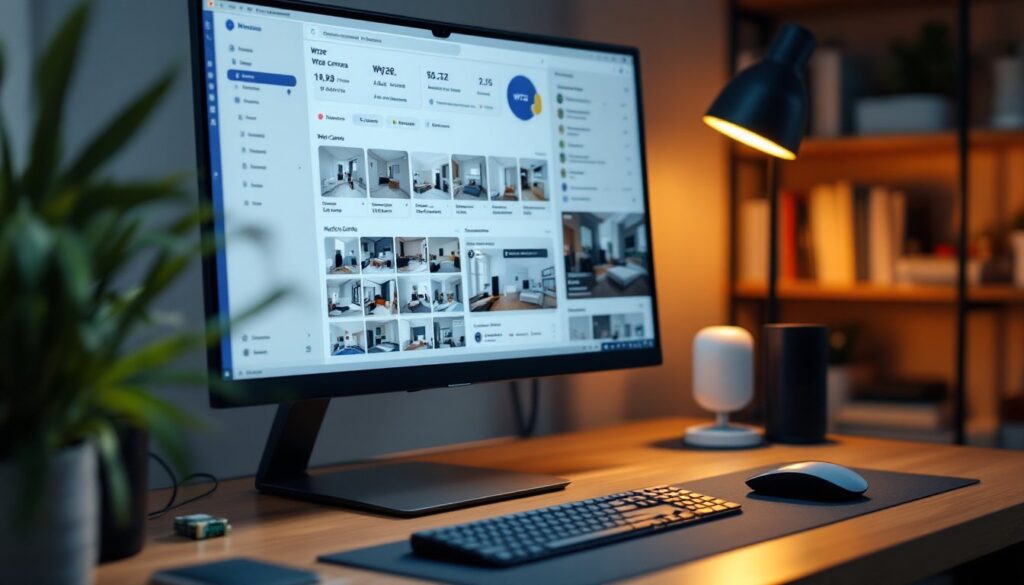

Home Assistant has become the backbone of many smart home setups, offering centralized control over disconnected devices. If you’ve already invested in Wyze cameras for surveillance, you know they’re affordable and reliable, but keeping them isolated in their own app isn’t ideal when you want a unified system. Integrating Wyze cameras with Home Assistant lets you pull feeds into one dashboard, trigger automations based on camera events, and control everything from a single interface. Whether you’re a longtime smart home tinkerer or just starting to connect your devices, this integration opens doors to possibilities your standalone Wyze app simply can’t deliver. Here’s how to get Wyze cameras talking to Home Assistant in 2026.
Table of Contents
ToggleKey Takeaways
- Integrating Wyze cameras with Home Assistant consolidates multiple smart home devices into a single unified dashboard, eliminating app fatigue and enabling centralized control regardless of cloud outages.
- Enable RTSP (Real Time Streaming Protocol) on your Wyze camera and use local network streaming to set up the integration—no cloud relay needed and no warranty impact.
- Home Assistant requires a dedicated machine like a Raspberry Pi 4B or NUC with wired Ethernet, while Wyze cameras must be on the same 2.4 GHz network segment for reliable connectivity.
- Motion-triggered automations with Wyze camera integration unlock advanced features like conditional lighting, presence-based alerts with snapshots, and siren activation that rival commercial security systems.
- Common setup failures stem from disabled RTSP, firewall port 554 blocking, or incorrect credential entry—verify camera settings and network configuration before troubleshooting automations.
- Start integration with a single Wyze camera using the Generic Camera integration, then expand to multiple cameras and build complex automations as you gain familiarity with Home Assistant.
What Is Home Assistant and Why It Matters for Your Smart Home
Home Assistant is open-source home automation software that runs on your own hardware, typically a Raspberry Pi, Intel NUC, or dedicated appliance, rather than relying on cloud servers from manufacturers. Unlike vendor-locked ecosystems, Home Assistant works with thousands of devices from different brands, pulling them into one dashboard.
The key advantage is independence. Your automations keep running even if Wyze’s cloud goes down or the company changes its API. You own the data, the setup, and the rules. Want your front-door camera to trigger lights when motion is detected at 11 p.m., or send a notification to your phone if a package is detected on your porch? Home Assistant handles that without shipping video through corporate servers.
For homeowners building a cohesive smart home ecosystem, Home Assistant eliminates the “app fatigue” of managing separate applications for lights, locks, thermostats, and cameras. Everything operates from one interface, whether via web dashboard, mobile app, or voice commands through integrations like Alexa or Google Home.
Compatibility and Hardware Requirements for Wyze Cameras
Not every Wyze camera model integrates equally well with Home Assistant. Current Wyze v3 and Pan cameras work most reliably, though older models like the v2 may require workarounds. Wyze also sells battery-powered outdoor cams, video doorbells, and other variants, check your specific model’s documentation before assuming compatibility.
On the Home Assistant side, you’ll need a dedicated machine running the software. A Raspberry Pi 4B or newer is the minimum (2GB RAM recommended, 4GB+ preferable), though a NUC, old laptop, or Synology NAS all work if you’re willing to install software. Most setups cost under $100 in hardware if you already have a spare computer lying around.
Your Wyze cameras must be on the same local network as Home Assistant. Both systems need stable Wi-Fi and 2.4 GHz band access, Wyze cameras don’t support 5 GHz. Wired Ethernet for Home Assistant itself is strongly recommended to avoid latency and connection drops that can break automations.
You’ll also need to enable RTSP (Real Time Streaming Protocol) on your Wyze cameras. This is a local, non-cloud feature that Wyze added a few years ago and continues to support. Enabling it voids no warranties and doesn’t affect your regular Wyze app functionality.
Step-by-Step Setup Guide for Wyze Camera Integration
Using RTSP and Local Network Streams
Before starting, gather your camera’s MAC address (found in the Wyze app under device settings) and the RTSP URL, which follows this format: rtsp://[IP_ADDRESS]:554/live.
On your Wyze camera:
- Open the Wyze app and select your camera.
- Tap the settings icon (gear).
- Scroll to Advanced Settings and toggle RTSP on.
- Note the username and password provided, you’ll need these for Home Assistant.
- Find your camera’s local IP address (check your router’s DHCP table or use a network scanner like Angry IP Scanner).
In Home Assistant:
- Navigate to Settings > Devices & Services > Create Automation.
- Search for and add the Generic Camera integration (or use FFmpeg if your instance supports it).
- Enter the RTSP URL:
rtsp://192.168.1.50:554/live(replace the IP with your camera’s actual address). - Input the username and password from the Wyze app.
- Save and restart Home Assistant if prompted.
Your camera feed should now appear in the Home Assistant dashboard. You can add multiple cameras by repeating this process. For cleaner setup, some users prefer YAML configuration files, consult Home Assistant’s documentation if you want to go that route.
Latency is typically 1-3 seconds over local networks, which is fine for viewing and automations but means real-time streaming won’t match dedicated security systems. If you need sub-second response, consider a wired camera system instead.
Advanced Features and Automation Options
Once integrated, your Wyze cameras unlock automations that rival systems costing five times as much. Motion detection from the camera feed can trigger lights, sirens, or conditional alerts. Want your garage lights to turn on automatically only when motion is detected between 6 p.m. and 6 a.m.? Home Assistant does that easily.
You can also set up presence-based rules: when everyone leaves home (detected via phone GPS or beacon devices), cameras can arm into a “away mode” that logs footage and sends alerts. If motion is detected while armed, Home Assistant can send push notifications with snapshots, trigger outdoor lights, or even activate a siren if you’ve integrated one.
Snapshot capture is another game-changer. Home Assistant can grab a still frame from your Wyze camera when triggered and attach it to notifications, emails, or save it to a folder for later review. This beats Wyze’s native alerts, which often lack that context.
For power users, integrating Wyze cameras with services reviewed on Digital Trends shows what other smart home platforms are capable of, and Home Assistant often exceeds them. You can also set up conditional logic: “if Person A arrives home and camera detects a stranger, alert with high priority.” The permutations are nearly endless.
Common Setup Issues and Troubleshooting Tips
Camera doesn’t stream. Check that RTSP is enabled in the Wyze app and that your Home Assistant and camera are on the same network segment (same subnet). Firewall rules sometimes block port 554: whitelist it on your router or temporarily disable the firewall to test. If Home Assistant is running inside a Docker container, ensure port 554 is exposed.
Feed works but lags heavily. Local network congestion is the culprit. Move your Wyze camera or Home Assistant closer to the router, or switch your camera to Ethernet via a USB adapter if possible. Reduce video resolution or frame rate in Home Assistant’s configuration if performance matters more than image quality.
Automations don’t trigger. Verify that motion detection is enabled on the camera itself (separate toggle in Wyze app). Test automation manually first: go to Developer Tools > States and manually trigger a motion event to confirm the automation logic works. If motion detection events aren’t reaching Home Assistant, you may need to use camera snapshots from Good Housekeeping’s recommended products as a reference for alternative camera systems, or revisit your RTSP configuration.
Camera credentials wrong. Double-check the username and password from the RTSP settings page. Note that Wyze usernames are typically email addresses: copy-paste to avoid typos. If you changed your Wyze password recently, regenerate RTSP credentials.
Conclusion
Integrating Wyze cameras into Home Assistant transforms them from standalone gadgets into part of a sophisticated smart home ecosystem. The setup takes an hour or two, and the payoff, unified control, powerful automations, and privacy through local processing, makes it worthwhile. Start with one camera, get comfortable with RTSP and basic streams, then expand your automations as you gain confidence. Your smart home will thank you.